


TL;DR: The holidays are one of the few times a business is left almost entirely unattended, and failures and attacks alike benefit from the delay. A few hours of preparation, a named person watching your systems, and a one-page contact list turn a potential week-long outage into a short, manageable interruption.
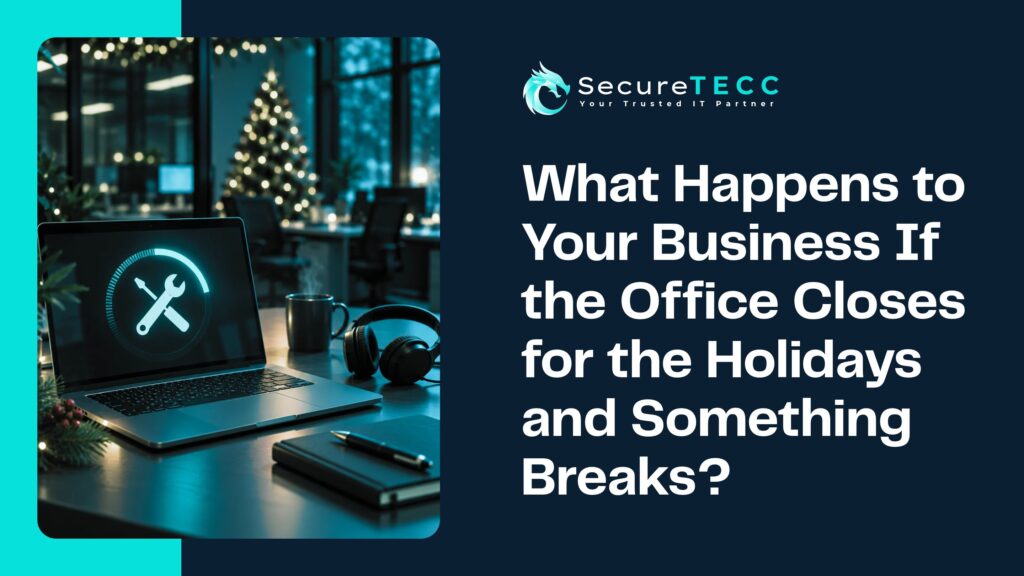
The last person out turns off the lights and locks the door. Then, for a week or more, the office runs by itself: the servers, the network, the phones, the website, the backups. Nobody’s watching any of it. Most of the time that’s fine. But if something fails on December 26th, the question that matters is when anyone finds out, and how much worse it has gotten by then.
Holiday closures are one of the few times a small business is almost entirely unattended, and both ordinary failures and deliberate attacks take advantage of that gap. Here’s what can go wrong, why the timing matters, and a practical checklist to run before you close.
What Happens If Something Breaks While the Office Is Closed?
If something breaks while your office is closed for the holidays, it can go unnoticed until someone returns, turning a small problem into days of downtime. Prevent that by running a pre-closure checklist, making sure someone is monitoring systems, and having a clear contact list and escalation plan for outages, security incidents, and failed backups.
What Can Actually Go Wrong When Nobody’s There?
Most closure problems are ordinary, not dramatic:
- Power problems: a brief outage or surge can shut down a server whose backup battery has quietly worn out, and it may not restart cleanly on its own
- Internet outages: phones, cloud applications, and remote access all depend on the connection, and the on-call person can’t fix what they can’t reach
- Hardware failures: a failing drive, a dead switch, or an overheating server closet
- Silent backup failures: a backup that stopped running, or ran out of space, days before the closure
- Expiring items: a domain name, website security certificate, or software subscription that lapses while everyone is away
- Security incidents: a compromised account, ransomware, or a fraudulent payment request that nobody sees until the office reopens
None of these is unusual. What turns them into expensive problems is the delay before anyone notices.
Do Attackers Really Target Holidays?
The evidence says they favor them. A Semperis survey of organizations across 10 countries found that 52% of ransomware attacks reported over the prior 12 months occurred on a weekend or holiday, and 6% of respondents did not staff security monitoring at all outside the regular workweek. That figure was down from the prior year’s survey, but it was still the majority. Two caveats: Semperis sells identity-security products, and the survey covered organizations of varied sizes rather than small businesses specifically. Many small businesses have no after-hours monitoring at all, which arguably makes the concern larger, not smaller.
Government guidance says the same. A joint FBI and CISA advisory on ransomware awareness for holidays and weekends notes that cyber criminals may view holidays and weekends, especially holiday weekends, as attractive timeframes to target both small and large businesses. The advisory dates to 2021, but its recommendations, including offline backups, multi-factor authentication, software updates, and securing remote access, are the same basics that still anchor security guidance today.
What Should You Do Before the Office Closes?
A short checklist, completed a few days before the break, prevents most of the surprises:
- Confirm your backups ran successfully, and restore a test file. A job that reports success isn’t proof the data can be recovered, and confirm that the off-site or cloud copy is current too.
- Finish updates early. Apply pending security updates days before closing, so any problems surface while staff are still around, and avoid major changes in the last day or two.
- Check power and cooling. Confirm backup batteries are healthy and that the server or network closet is ventilated.
- Test remote access for the person on call. Make sure they can actually connect, using multi-factor authentication, before you leave.
- Set up phones and email. Forward calls or update voicemail, and set an out-of-office message with an emergency contact for customers.
- Review accounts. Disable accounts for departed staff, confirm multi-factor authentication is on, and limit who has administrator access during the break.
- Check for expirations. Look at domain names, website certificates, and software renewals due during the closure.
- Confirm alerts reach a person. Monitoring that emails a shared inbox nobody reads is worse than none, because it creates false confidence.
- Remind employees to watch for holiday scams and to report anything suspicious right away, even if they clicked.
Who Is Actually Watching Your Systems While Everyone Is Gone?
This is the question that decides how bad a holiday failure gets. There are three realistic answers. You can rely on automated monitoring that sends alerts to a specific, reachable person. You can set up an internal on-call rotation, which works but depends on people staying available during their time off. Or you can lean on a provider with round-the-clock coverage, so a failure gets seen and acted on at 2 a.m. regardless of who’s traveling. Whichever you choose, someone should own it by name, and everyone should know who that is.
CISA’s advisory points the same way, recommending that organizations identify IT security staff who can be on call or surge during weekends and holidays in case of an incident.
What Should Your Holiday Contact and Escalation List Include?
Put it on one page and keep a copy that doesn’t depend on your own network, such as a printed sheet or a phone note:
- Your IT provider or on-call technician, with after-hours contact details
- Your internet provider, phone provider, and building manager or electrician
- Your alarm or access-control company, if applicable
- Your insurance carrier, including cyber coverage if you have it
- The person with authority to approve emergency spending and decisions
- A short definition of what counts as an emergency: a server or internet outage, a ransom note, an unexplained login, or an unusual payment request
What If Something Does Break While You’re Away?
Start by reaching the person or provider on your list instead of troubleshooting alone. Write down what happened and when you noticed. If the issue looks like a security incident, such as a ransom note or an unexplained login, avoid wiping or rebooting affected systems before your IT provider weighs in, and notify your insurer. For ransomware, the FBI and CISA also urge reporting incidents to CISA, a local FBI field office, or the FBI’s Internet Crime Complaint Center. Speed matters most in the first hours, which is exactly what a holiday closure makes hardest.
What Might This Look Like for a Real Business?
Picture a 12-person professional office that closes from December 23rd to January 2nd. On the 26th, a brief power flicker shuts down the server, whose backup battery died months ago. It doesn’t restart, and the nightly backup is missed. Nobody knows until staff return on January 2nd to a dead file server and a client deadline that morning. A business that had run the checklist would have seen the battery warning in advance, had alerts going to an on-call technician, and had someone check the server within hours. The same power flicker would have cost a few hours instead of a week’s worth of uncertainty.
How SecureTECC Can Help
SecureTECC’s around-the-clock support intake means a request can be logged at any hour during closures, Cybersecurity services include automated threat monitoring, and Managed IT includes automated monitoring in the background. Backup & Data Recovery helps make sure the copies you’d need are current and recoverable, and Remote & On-Site Support covers hands-on response when something does need attention. A short pre-closure review can catch the problems on the checklist before they become holiday emergencies.
Frequently Asked Questions
Should we shut down our servers during a long closure?
Generally not unless it’s planned. Servers and network equipment usually stay on, protected by a healthy backup battery, so that backups and monitoring continue. For workstations and special cases, follow your IT provider’s guidance.
Is it safe to leave backups running over the holidays?
Yes, and it’s best to. Just confirm beforehand that they’re completing successfully and that a test restore works, and make sure someone will see an alert if a job fails.
Who should have remote access during the closure?
Only the people who actually need it, such as the on-call technician or a designated manager, protected by multi-factor authentication. Fewer active accounts means a smaller target while you’re away.
What should our out-of-office message say?
Keep it brief and generic: the dates you’re closed and a single emergency contact. Avoid details like travel plans or personal phone numbers, which attackers can use to make fraudulent requests more convincing.
Do we need to be on call ourselves?
Not necessarily, but someone with decision-making authority should be reachable. If a provider monitors your systems around the clock, you mainly need to be reachable for decisions rather than for fixing anything.
The Bottom Line
The holidays are one of the few times a business is left almost entirely unattended, and failures and attacks alike benefit from the delay. A few hours of preparation, a named person watching your systems, and a one-page contact list turn a potential week-long outage into a short, manageable interruption.
Want a pre-closure review before the break? Ask SecureTECC Solutions for a free consultation and we’ll walk through your setup together, no pressure, no obligation.
SecureTECC Solutions supports small businesses across Ventura County, Los Angeles and Santa Barbara counties.